Free
01Full page
Automatically scroll and stitch an entire webpage into one clear, high-resolution capture.
Explore full-page capture →
Create sharp full-page, responsive, visible-screen and selected-area screenshots. Annotate, compare and export the result in one focused workflow, without uploading normal screenshot content.
Privacy is not an add-on
Capture, annotate, compare and organize normal screenshot work locally. Your image does not need a trip through our servers just to draw an arrow or export a file. Optional Pro comparison sharing uploads the chosen before/after frame after you approve it. See what a share link contains.
Explore the privacy architecture →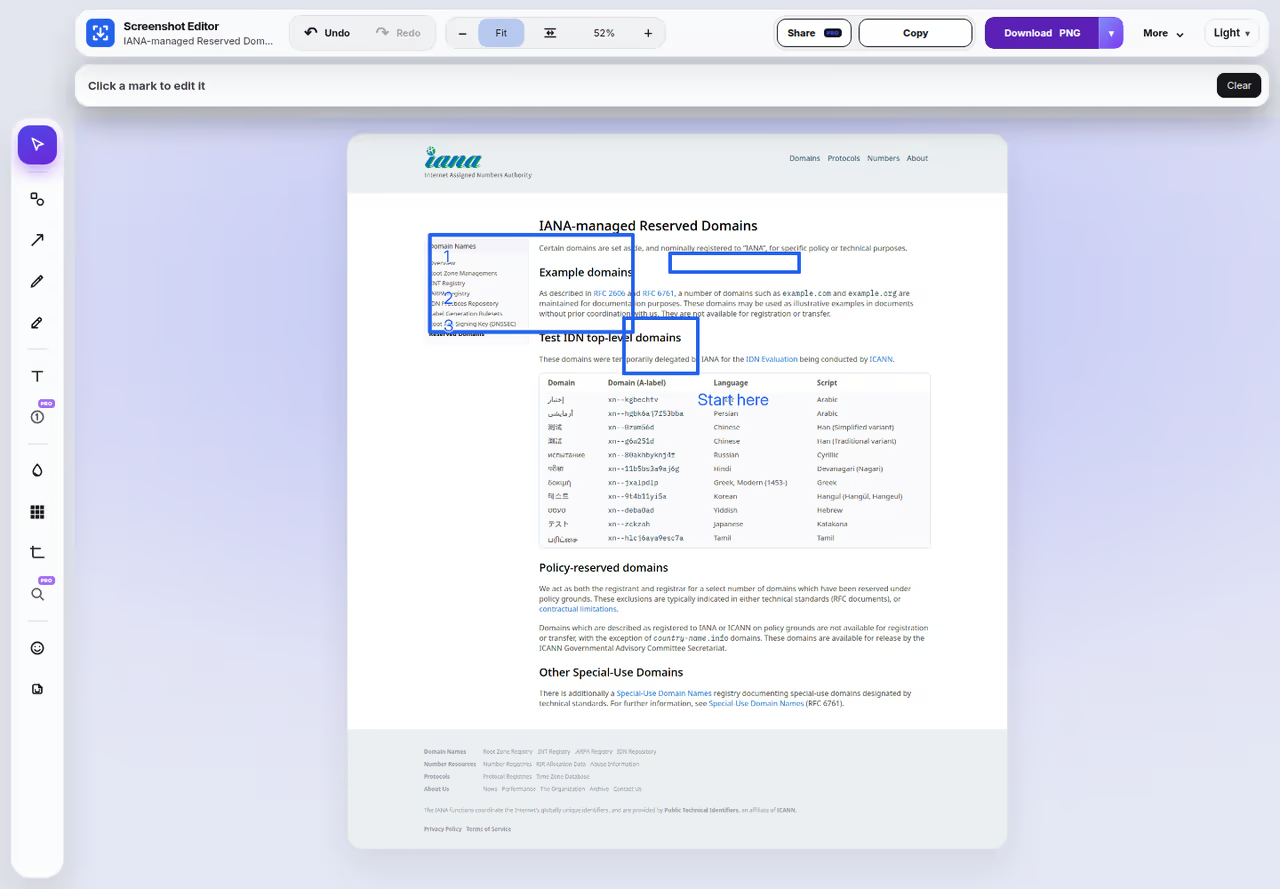
Capture exactly what you need
From a single dashboard card to a 20,000-pixel landing page, choose the capture method once and Capture remembers it for next time. Also free: Pick scroll area for panels that scroll on their own, One element, and a 3, 5 or 10 second delay. See every feature.
Automatically scroll and stitch an entire webpage into one clear, high-resolution capture.
Capture exactly what is visible in the current browser viewport, with nothing above or below.
Explore visible capture →Draw around one precise region and take only the evidence your review needs.
Trigger the page's real CSS at tablet and phone widths before taking the screenshot.
Built-in screenshot editor
Turn a raw website screenshot into a clear review, bug report, design note or client presentation in the same workflow.
Explore the screenshot editor →Use arrows, shapes, text, highlights and numbered callouts that remain editable.
Blur or pixelate names, email addresses and account details before sharing.
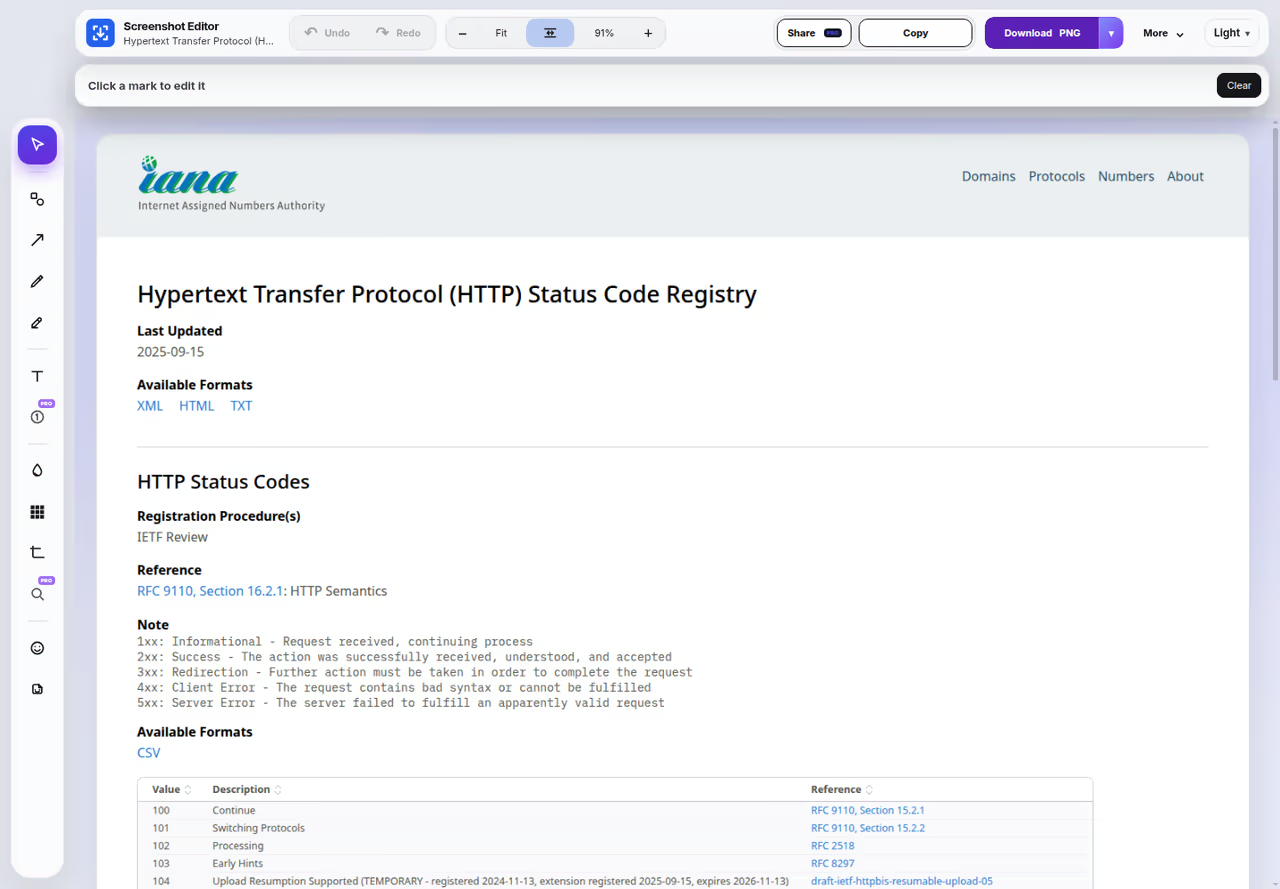
Fit Page, Fit Width and exact edge controls make very long screenshots manageable.
Product workflow
The editor and the toolbar popup below are the real Capture interface.

Interactive before and after comparison
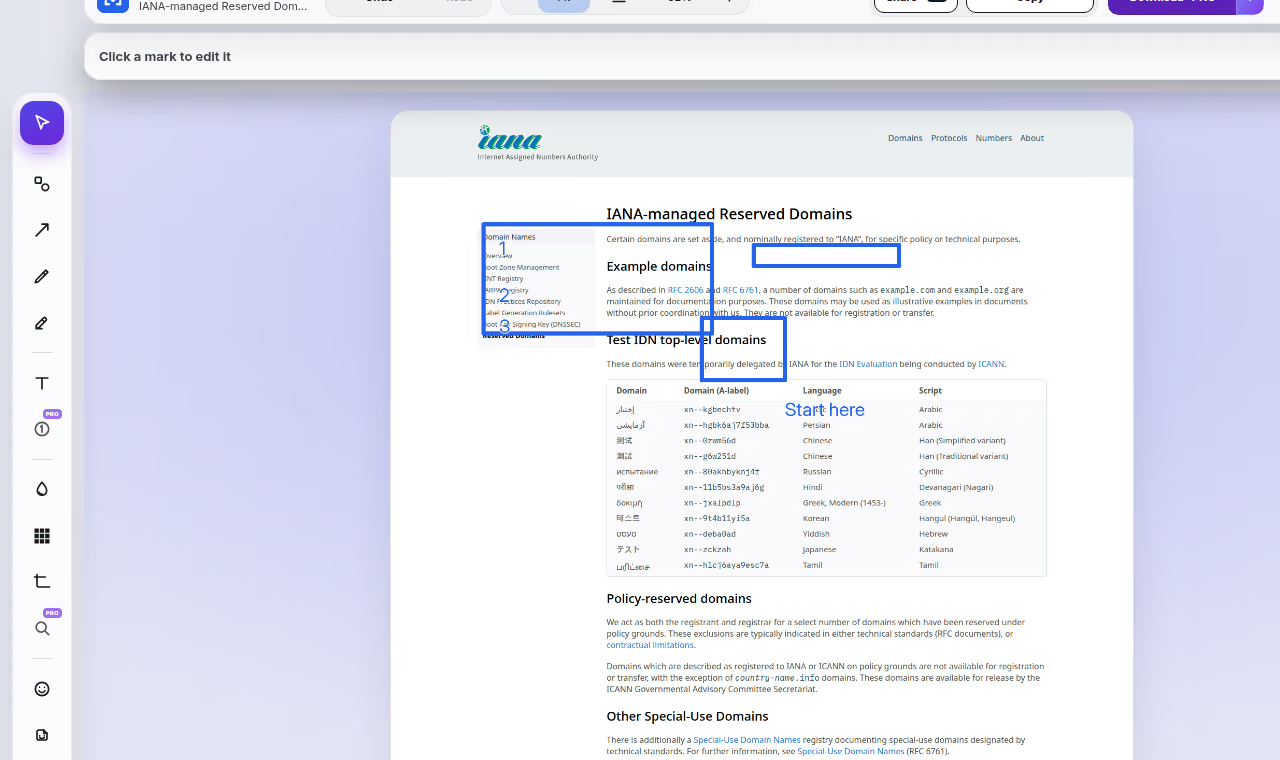
Drag between an annotated capture and Fit width on a long page. Both are the real Capture editor in the light theme. In the extension, Compare is a separate Pro view of the original captures; annotations prepared in the editor do not automatically carry into a comparison. Review both images before sharing.
Made for real review work
Capture is useful far beyond taking a picture. It connects capture, markup, comparison, review and presentation.
Show exactly where a layout or content problem appears, add priority and export a professional report.
Annotate spacing, alignment, content hierarchy and responsive problems directly on the page image.
Use numbered callouts and screenshot metadata to give developers clearer, more reproducible feedback.
Turn approved screenshots into branded presentation images and multi-page PDF review documents.
Local-first by design
Capture is designed around a simple rule: screenshot content should not be sent to a server just because you want to crop it, draw an arrow or compare two versions.
We do not need your screenshots to run normal capture and editing workflows.
From screenshot to professional report
Turn one or many annotated screenshots into a readable, branded review. Each issue stays connected to its numbered callout, context and priority.
Simple pricing
No ads. No watermark. Copy Image remains unlimited on Free. In India, Pro is ₹288/month or ₹1,152/year + 18% GST (₹340 or ₹1,359 in total).

India billing: ₹288/month or ₹1,152/year + 18% GST (₹340/month or ₹1,359/year in total). Compare plans and billing options.
Practical screenshot guides
Start with a full-page capture, a selected area or a mobile-width layout. If the result misses content, the troubleshooting guide explains scrolling panels, lazy images and long-page limits.
Before sending a screenshot, review sensitive information and check the final exported image. For ongoing work, learn how local History and backup work or what a Pro comparison link uploads. See Pricing for Free and Pro limits.
Open More, then Record, and choose This tab, Window, or Screen. No account is needed. Recordings stay on your computer and are not uploaded. Microphone, webcam, and tab audio stay off until you turn them on.

See the changelog for this release.
Chrome includes only the audio you choose in its sharing picker. Tick Share tab audio when you share a tab, or Share system audio when you share a window or screen, and unmute the tab. If you want your voice, allow the microphone when Chrome asks and leave it unmuted. In Capture, microphone, webcam, and tab audio stay off until you turn them on. From version 5.10.6 you can mute or unmute the microphone while recording. On macOS, Chrome limits system audio capture, so a window or screen recording may not include computer sound.
Yes. From version 5.10.6 you can mute or unmute your microphone while recording. Microphone, webcam, and tab audio stay off until you turn them on.
No. From version 5.10.6, when you start recording from a normal tab, the recorder opens in its own small recorder window and Capture hides itself before recording starts, so it does not appear in the video.
Stop the recording, then use the Save video button under playback. Capture saves MP4, or WebM when MP4 is not available. On Free, a recording is up to 5 minutes at up to 1080p, with no watermark, MP4 download, and basic start/end trim. Pro has no time limit and can also export GIF.
Frequently asked questions
Capture by RATdeck is a Chrome extension for full-page screenshots, scrolling screenshots and screen capture of any part of a web page. It includes a built-in editor for arrows, text, shapes, blur and crop, plus Pro tools for before/after comparison, SOP guides, bulk capture of up to 100 URLs and PDF export.
Install Capture by RATdeck from the Chrome Web Store, open the page, then click the Capture icon or press Ctrl+Shift+1 (Command+Shift+1 on Mac). Capture scrolls the page, stitches it into one image and opens the editor, where you can annotate, copy or download PNG, JPG or WebP for free.
Use Full Page mode in Capture by RATdeck. It scrolls the page for you and stitches each screen into one long screenshot. If the content scrolls inside a panel, such as a chat, table or sidebar, choose Pick scroll area and click that panel so only its scrolling content is captured.
Yes. Capture by RATdeck has a free plan with full-page, visible-area, select-area, scroll-area and element capture, the core editor, unlimited copy to clipboard and unlimited PNG, JPG and WebP downloads. There is no watermark and no ads. Free downloads are unlimited. Screen recording is included: Free is up to 5 minutes at up to 1080p, with no watermark, MP4 download, and basic start/end trim. Pro recording has no time limit, up to 4K when the source allows, GIF export, drawing annotations, and middle-section removal. Pro is optional and costs $3 a month or $12 a year.
Take a screenshot with Capture by RATdeck and it opens in the built-in editor. Use the tool rail to add arrows, lines, rectangles, circles, pen strokes, highlighter, text and emoji, then blur or pixelate private details and crop the result. Copy it to the clipboard or download PNG, JPG or WebP, all free.
In Capture by RATdeck Pro, capture the page before the change, make or deploy the change, then choose Compare with last capture. Capture shows the before and after screenshots on one screen, with a visual difference view. You can export the result as an image or PDF, or create a share link.
Use the Guide / SOP builder in Capture by RATdeck Pro. Capture each step of the process, open Guide, and add a title, caption and expected result to every screenshot. Reorder steps with Earlier and Later, add numbered callouts, then export the finished guide as a PDF to share with your team.
Yes. Capture by RATdeck has Bulk capture. Paste a list of URLs and Capture opens and screenshots each page in turn, saving the results on your device as a ZIP. Free runs up to 3 URLs in a batch. Pro runs up to 100 URLs and adds a combined PDF report and a CSV.
No, not during normal use. Capture by RATdeck captures, edits, compares and exports screenshots locally in Chrome. The only upload happens when a Pro user deliberately creates a share link and approves it. Sign-in and Pro licensing talk to the Capture service, but those checks never include screenshot pixels.
Pro is $3/month or $12/year. Capture by RATdeck Pro works out to about $1 a month on the yearly plan. Buyers in India pay ₹288 per month or ₹1,152 per year plus 18% GST, which is ₹340 per month or ₹1,359 per year in total. You can cancel before renewal.
Yes. Version 5.10.7 includes screen recording. Open More, then Record, and choose This tab, Window, or Screen. No account is needed. Recordings stay on your computer and are not uploaded. Microphone, webcam, and tab audio stay off until you turn them on. Free records up to 5 minutes at up to 1080p, with local recordings, no watermark, MP4 download, and basic start/end trim. Pro has no time limit, can ask for 1440p or 4K when the shared screen is that large, can export GIF export, drawing annotations, and can remove a middle section. Pro can draw on a shared tab with pen, arrow, box, circle, highlighter, and text, and can save WebM or MP4 when this Chrome can write it.
Step-by-step answers for the most common screenshot jobs in Chrome.

Capture by RATdeck
Capture full webpages, explain what matters, protect private information and export professional review material from one Chrome workflow.
Each Capture page has one clear purpose, so you can jump directly to the capture method or guide you need.